PanatrackerGP
Warehouse barcode scanning and mobility system layered on Microsoft Dynamics GP — covering goods receiving, order picking, stock transfers, dispatch, stocktake, and serialized medical equipment tracking across Aidacare's 5 distribution centres. Includes NiceLabel barcode label printing integration.
System Details
Core Configuration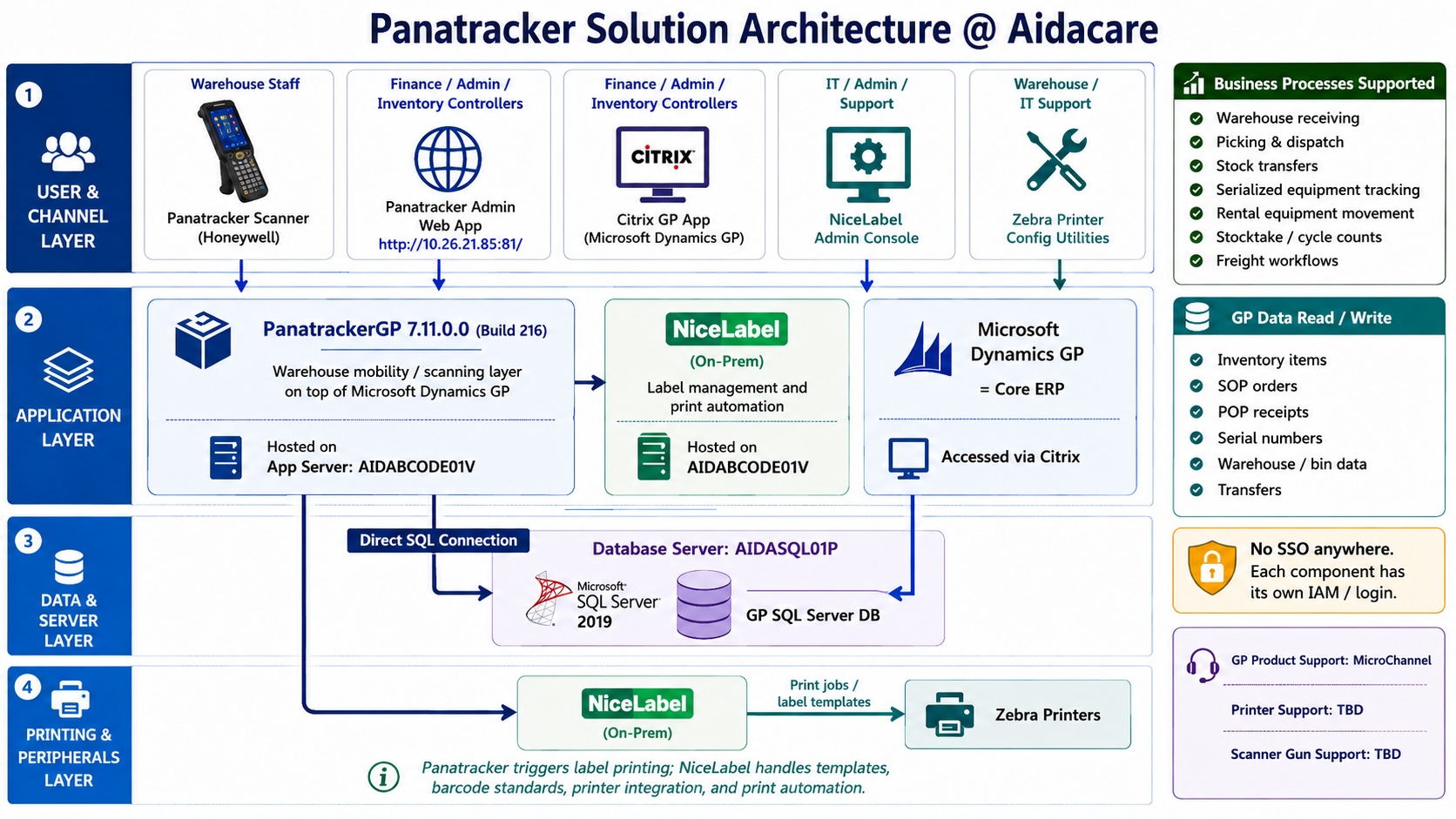
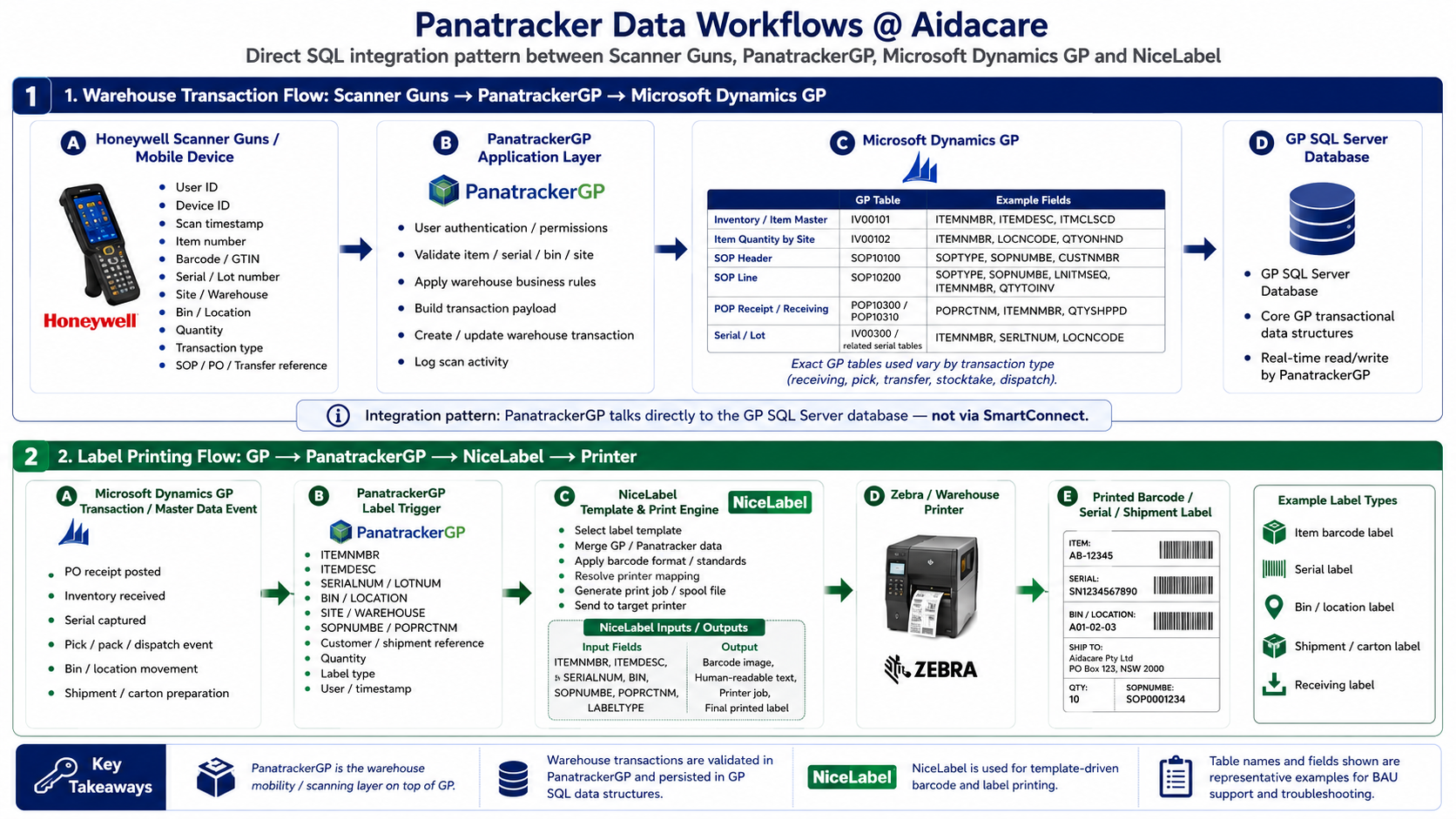
System Inventory
InfrastructureIntegration Architecture
Out-of-the-boxPanatrackerGP uses the native out-of-the-box GP integration — no custom code, SmartConnect jobs, or middleware is required. Scan events post directly into GP data tables in real time. NiceLabel is invoked by Panatracker for all label printing events. .Panatracker connect to GP using SQL direct connection Panatracker get serial numbers fro GP to send to NiceLabel for printing
Scanning to GP Flow
Scanner (wifi)
AIDABCODE01V
Integration
AIDASQL01P / HANDR
Label Printing Flow
in Panatracker
AIDABCODE01V
Dropped to Printer
(per DC)
GP Data Read & Written
| GP Data | Direction | Used In |
|---|---|---|
| Inventory items | Read / Write | All warehouse processes |
| SOP orders | Read / Write | Pick, dispatch, fulfilment |
| POP receipts | Write | Goods receiving |
| Serial numbers | Read / Write | Serialized equipment tracking |
| Warehouse / bin data | Read / Write | Transfers, stocktake, bin moves |
| Inventory transfers | Write | Inter-DC stock movements |
PanatrackerGP System Configuration
From source document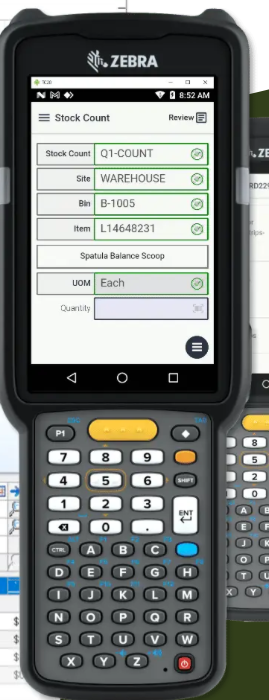
Receiving Workflow (Goods Receipt)
Step-by-stepPicking & Dispatch Workflow
SOP fulfilmentInter-DC Transfer Workflow
Directed vs GP In-TransitThere are two transfer methods used at Aidacare. It is important to use the correct one — mixing them causes inventory mismatches and GP reconciliation issues.
- Initiated within PanatrackerGP scanner UI
- Moves stock between bins within or between DCs
- PanatrackerGP posts transfer directly to GP
- Real-time — no separate GP transfer document needed
- Transfer document created in GP (Inventory > Transactions > Transfer)
- PanatrackerGP is used to scan confirm the transfer at both DCs
- Supports the Transfer Linking Enhancement (links to SOP orders)
- Used when a formal in-transit stock status is required
Workflow Diagrams — From Source Document
Panatracker@Aidacare.docx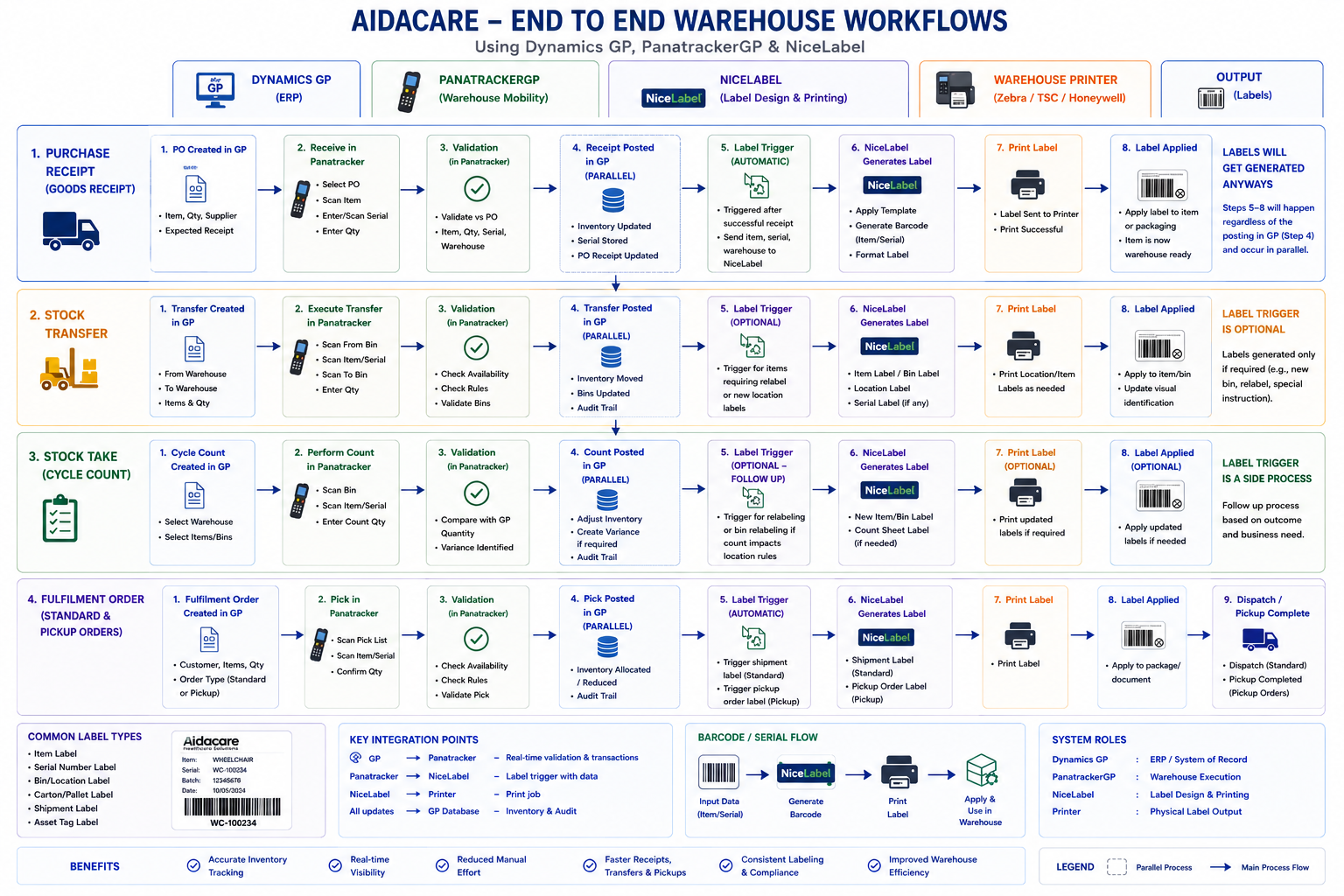
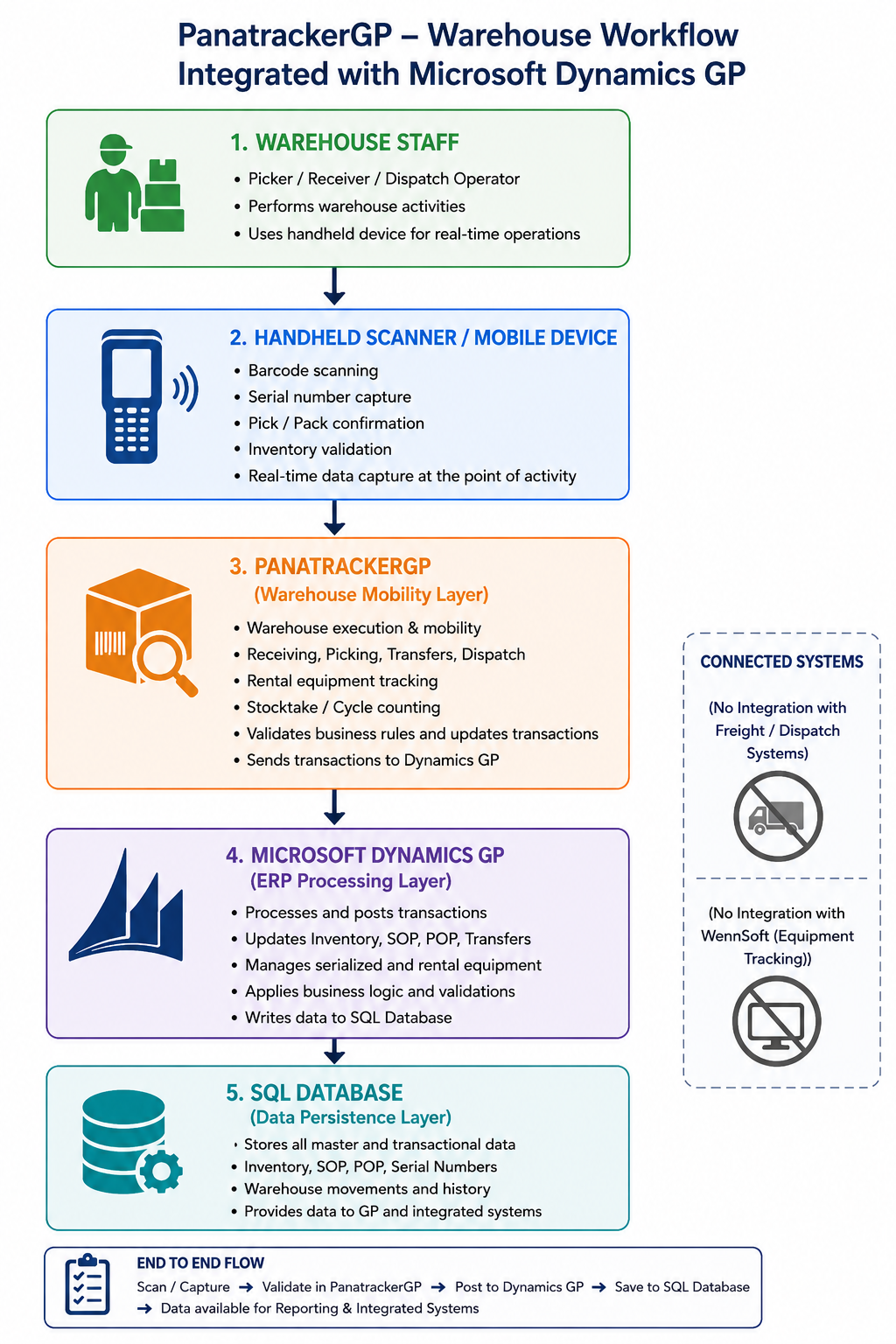
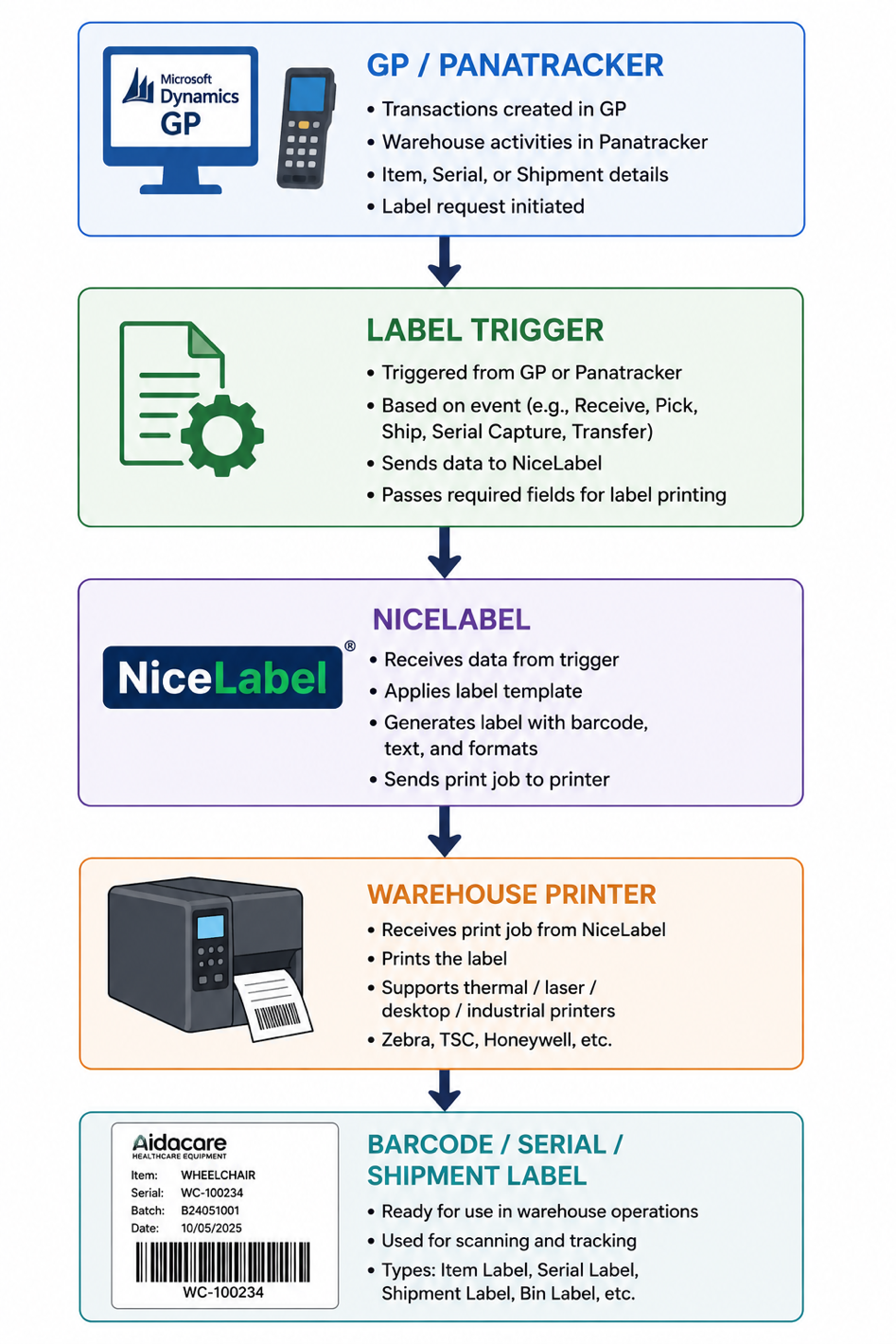
NiceLabel System Details
On-PremisesNiceLabel Receiving Workflow
Label print triggerThe NiceLabel receiving workflow is triggered automatically when warehouse staff scan incoming goods via PanatrackerGP.
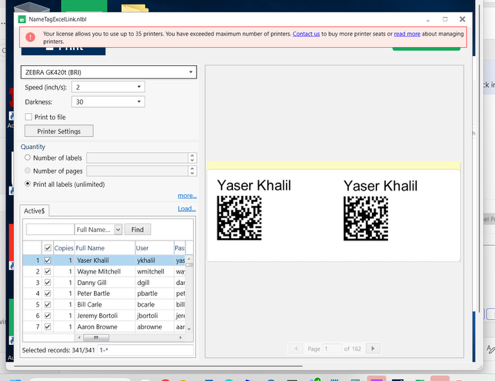
Label Types Used at Aidacare
1. Barcode Label
Item / SerialApplied to individual items and serialized assets. Used for wheelchairs, medical equipment, and rental assets throughout their lifecycle.
2. Warehouse Bin Label
LocationPrinted for warehouse bin and shelf locations across all 5 DCs. Enables scanning of bin IDs during stocktake, put-away, and pick operations.
3. Shipment / Carton Label
DispatchPrinted during the dispatch process for each packed carton. Supports carrier scanning and customer identification at delivery.
4. Serialized Equipment Label
Asset TrackingPrinted for serialized medical and rental equipment. Enables full lifecycle tracking by equipment serial number through all DCs and customer sites.
5. Receiving Label
Goods ReceiptPrinted at goods receipt when stock arrives at the DC. Applied to items immediately upon scanning to confirm receipt and enable future scanning within the DC.
Product Roles Summary
Key distinctionUnderstanding the division of responsibility between the two systems is essential for troubleshooting:
NiceLabel Integration with PanatrackerGP
Label triggers| Panatracker Event | Label Type Triggered | Printer | Users |
|---|---|---|---|
| Goods receipt scan (POP) | Receiving Label + Barcode Label | Zebra (DC receiving dock) | Warehouse staff |
| New serialized item receipt | Serialized Equipment Label | Zebra (DC receiving dock) | Warehouse staff |
| Carton packing (dispatch) | Shipment / Carton Label | Zebra (DC dispatch area) | Warehouse staff |
| Bin/location setup (IT admin) | Warehouse Bin Label | Zebra (any DC) | IT / Warehouse admin |
| New item master created | Barcode Label (item barcode) | Zebra (any DC) | IT / Inventory admin |
| Manual re-print request | Any label type (via NiceLabel admin console) | Any configured Zebra printer | IT / Support |
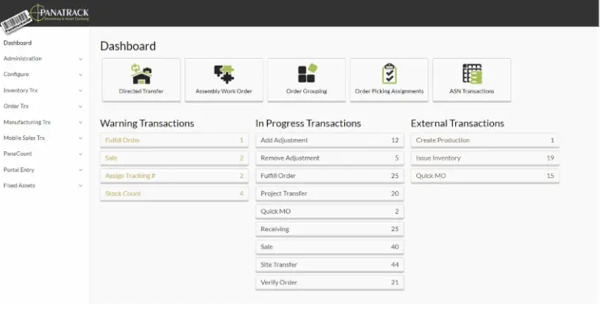
PanatrackerGP — Support Reference Screenshot
From source document
PanatrackerGP — BAU Production Issues
15 issue categories| # | BAU Request Area | Typical Symptoms | Troubleshooting Approach | Resolution | Business Impact |
|---|---|---|---|---|---|
| 1 | User Setup / Login | Warehouse staff cannot log in to Panatracker scanner or admin web app. "Invalid credentials" or "user not found" error. | Check user account in PanatrackerGP admin web app (http://10.26.21.85:81/). Verify username, password, and role assignment. Check if account is locked or disabled. | Reset user password or re-create user account in PanatrackerGP admin. Check if GP user account is also required and linked correctly. | High — affected staff cannot perform any warehouse scanning until resolved. |
| 2 | Printer Issues | Labels not printing after scan event. Printer offline or jobs queued but not printing. Wrong printer selected. | Check Zebra printer is powered on and connected to AIDABCODE01V print queue. Check NiceLabel admin console for queued/failed jobs. Verify print file is being dropped to correct printer path by Panatracker. Use Zebra config utilities to check printer status. | Restart Zebra printer. Clear queued jobs in NiceLabel and Windows print queue. Confirm correct printer is configured in Panatracker for the DC. Re-create printer on server if necessary using Zebra utilities. | Medium — warehouse operations can continue but items receive no barcode labels until resolved. |
| 3 | Deadlocks in GP | Scan events fail to post to GP. Error messages on scanner: "transaction could not be completed", "deadlock" in Panatracker logs. | Check SQL Server error logs on AIDASQL01P. Identify locking/blocking processes in HANDR or PanatrackerGP databases. Check if other large GP batch jobs are running simultaneously (payroll, month-end closing, GRNI processing). | Kill blocking SQL process if safe to do so. Retry the failed scan transaction. Coordinate with GP Finance team to schedule heavy batch jobs outside of peak scanning hours. Escalate to MicroChannel if persistent. | High — scanning operations halt for all affected users until deadlock resolves. Risk of duplicate or incomplete GP postings. |
| 4 | Gun Charging / Scanner Hardware | Honeywell handheld scanner will not power on, battery draining quickly, scanner not connecting to wifi, scanner display issues. | Check battery charge level and cradle charging connection. Try a different charging cradle or battery. Attempt wifi reconnection from device settings. Check device hostname/IP for wifi network connectivity to AIDABCODE01V. | Replace battery or charging cradle. Re-provision device to wifi network if connectivity lost. Contact hardware vendor for physical device repairs. Use spare scanner from the DC pool as a temporary replacement. | Medium — one staff member affected per faulty device. Impact increases if multiple scanners fail simultaneously. |
| 5 | Connectivity Issues | Scanners appear connected to wifi but cannot communicate with PanatrackerGP server. "Server unavailable" or timeout errors on scanner screen. | Test connectivity from scanner to AIDABCODE01V (ping test). Check if PanatrackerGP application service is running on AIDABCODE01V. Check firewall rules between DC network segment and AIDABCODE01V. Verify wifi access point status at affected DC. | Restart PanatrackerGP application service if stopped. Engage network/infrastructure team to resolve wifi or firewall issues. Check if VPN or WAN link to AIDABCODE01V is degraded for remote DC scanners. | Critical — all scanning at affected DC stops. Full warehouse operations blocked until connectivity is restored. |
| 6 | Directed Transfers vs GP In-Transit Transfers | Transfer creates duplicate inventory movements. Stock shows incorrectly in GP after transfer. DC staff unsure which transfer method to use. | Identify which transfer method was used (Panatracker Directed Transfer or GP In-Transit Transfer document). Check GP Inventory Transfer records and PanatrackerGP transfer log. Determine whether both systems processed the same transfer. | Reverse the duplicate posting via GP inventory adjustment. Re-train warehouse staff on which transfer method applies to each scenario. Update procedure documentation and post to the knowledge portal. Escalate persistent confusion to MicroChannel for configuration review. | High — inventory on-hand figures are incorrect in GP until resolved. Can affect picking, dispatch, and financial reporting. |
| 7 | Barcode / Serial Scan Failures | Scanner cannot read a barcode. "Item not found" error when barcode is scanned. Serial number not recognised by Panatracker. | Check if barcode label is damaged, smudged, or poorly printed. Attempt manual entry of item number on scanner to confirm the item exists in PanatrackerGP/GP. Check GP item master for the scanned item number. Verify serial number is registered in GP serial/lot master. | Reprint label via NiceLabel if damaged. Add item to PanatrackerGP if missing from item sync. Register serial number in GP if not previously entered. Clean scanner glass if laser is dirty. Escalate to MicroChannel if item sync from GP is not populating correctly. | Medium — individual item cannot be processed until resolved. Warehouse staff must set item aside and escalate. |
| 8 | Inventory Mismatch | GP inventory on-hand quantities do not match physical stock. PanatrackerGP shows different quantity to GP. Discrepancy found after stocktake. | Run PanatrackerGP inventory reconciliation report from admin web app. Compare against GP SmartList inventory on-hand. Identify transactions posted in PanatrackerGP that may not have successfully committed to GP (check for failed eConnect postings). Review recent adjustments and transfers for double-posting. | Post correcting inventory adjustment in GP after Finance team review and sign-off. Investigate root cause — failed eConnect posting, transfer method conflict, or duplicate scan. Run GRNI reconciliation if receiving discrepancy. Escalate to MicroChannel if eConnect integration errors are found. | High — incorrect stock levels affect picking accuracy, replenishment orders, and financial inventory valuation. |
| 9 | Stocktake / Cycle Count | Stocktake count not appearing in PanatrackerGP after scanning. Count quantities not reconciling to GP. Scanner freezes during count. Count data not transferring to GP report. | Check if stocktake session is correctly opened in PanatrackerGP before scanning begins. Verify handheld devices are connected and syncing count data to AIDABCODE01V during the count. Check PanatrackerGP admin web app for count session status. Review SSRS stocktake comparison reports for data discrepancies. | Re-open or restart the stocktake session in PanatrackerGP admin if corrupted. Re-scan affected sections. Run SSRS stocktake reports to identify missing count data. Post manual GP inventory adjustments for confirmed variances after Finance sign-off. Engage MicroChannel for persistent count session issues. | Medium-High — stocktake process is delayed or invalidated. Financial close may be impacted if stocktake cannot be completed on schedule. |
| 10 | Receiving / PO Processing | Goods receipt cannot be posted via scanner. PO not visible on handheld. "PO not found" error. Receipt posts to PanatrackerGP but does not appear in GP POP. | Confirm PO exists and is in "Released" status in GP (Purchasing > Purchase Order Processing > Purchase Orders). Check if PO number is correctly entered on the scanner. Review PanatrackerGP admin web app for failed receipt postings. Check eConnect integration logs for posting errors. | Correct PO status in GP if it is in the wrong state. Retry the receipt scan. Manually post POP receipt in GP as a workaround if scanner posting keeps failing — then reconcile the PanatrackerGP record. Escalate to MicroChannel if eConnect errors persist. | High — goods cannot be receipted into inventory, blocking put-away and pick availability for received stock. |
| 11 | Pick / Fulfilment | Pick task not appearing on handheld scanner. SOP order not visible in Panatracker. Pick confirms on scanner but order remains open in GP. | Check SOP order status in GP — must be in "Released" status for Panatracker to present it as a pick task. Check PanatrackerGP admin web app for pick task queue. Verify pick transaction in PanatrackerGP scan logs. Check eConnect logs for failed fulfilment posting back to GP SOP. | Release SOP order in GP if in incorrect status. Retry pick posting from PanatrackerGP admin. Manually update SOP order fulfilment status in GP as a workaround. Escalate to MicroChannel if pick posting failures are systematic. | High — order cannot be fulfilled and dispatched. Customer delivery is delayed. |
| 12 | Label Trigger / Print Automation Failures | Scan event completes successfully but no label is printed. Label prints to wrong printer. NiceLabel print job shows error in admin console. | Check NiceLabel admin console on AIDABCODE01V for failed or queued print jobs. Confirm printer path is correctly configured in Panatracker print setup. Verify Zebra printer is online and paper/ribbon is loaded. Check Windows print queue for stuck jobs on AIDABCODE01V. | Clear failed jobs in NiceLabel and Windows print queue. Trigger a manual reprint from NiceLabel admin console. Correct printer mapping in PanatrackerGP configuration if the wrong printer is selected. Reload paper/ribbon in Zebra printer. Restart NiceLabel print service if needed. | Medium — items are processed in GP but have no barcode labels, creating risk of mis-picking and inventory tracking errors. |
| 13 | Mobile Device Sync Failures | Handheld scanner shows stale data (old items, old POs). Device does not sync latest GP data. Scanner app crashes on startup. | Force-sync the device from PanatrackerGP admin web app. Check if PanatrackerGP sync service is running on AIDABCODE01V. Check device wifi connectivity and signal strength at DC. Review PanatrackerGP application service logs on AIDABCODE01V for sync errors. | Force device sync from admin console. Restart PanatrackerGP sync/application service if stopped. Reconnect device to wifi. Perform a device reboot. If app crashes persist, re-deploy Panatracker client app to the device. Escalate to MicroChannel for persistent sync failures. | Medium — staff are working against outdated data, risking incorrect receipts, picks, or transfers being posted. |
| 14 | Performance / Slowness | PanatrackerGP scanner app responds slowly. Long delays between scan and confirmation. Admin web app loads slowly. Scans time out. | Check AIDABCODE01V server CPU and memory usage. Check AIDASQL01P SQL Server for long-running queries against PanatrackerGP or HANDR databases. Identify if a large GP batch process is competing for SQL resources. Review Panatracker app server logs for bottlenecks. | Kill resource-intensive SQL queries if safe. Schedule heavy batch jobs outside peak scanning hours. Engage infrastructure team to review AIDABCODE01V / AIDASQL01P resource allocation. Escalate to MicroChannel for application-level performance issues. | Medium-High — slow scanning reduces warehouse throughput. Risk of staff abandoning scans, leading to unrecorded transactions and inventory discrepancies. |
| 15 | Hardware Peripheral Issues | Zebra printer hardware fault. Scanner cradle not charging devices. Label stock (paper/ribbon) jams or incorrect media loaded. Scanner glass cracked or laser not reading. | For Zebra printers: check printer status lights, error codes, and use Zebra config utilities on AIDABCODE01V to diagnose. For scanner hardware: check device physically and attempt cradle swap. Confirm correct label media type is loaded in the Zebra printer. | Replace Zebra printer ribbon/paper stock. Clear printer jam using Zebra maintenance guide. Replace faulty charging cradle. Raise hardware replacement request with Aidacare IT for physical repairs. Use spare devices from the DC pool as interim. Contact Zebra or Honeywell hardware support for warranty repairs. | Medium — hardware failure affects the printing or scanning capability of one or more staff/printers. Impact scales with number of affected devices. |
NiceLabel — Specific Production Issues
8 issue categories| # | Issue | Typical Symptoms | Troubleshooting Approach | Resolution | Business Impact |
|---|---|---|---|---|---|
| NL-1 | Label Not Printing | Scan event completes in Panatracker but no label is produced. NiceLabel job may show as queued or failed in admin console. Zebra printer lights are on. | Open NiceLabel admin console on AIDABCODE01V. Check print job queue — is the job queued, failed, or missing? Check Windows print queue for the Zebra printer. Confirm printer is online and paper/ribbon is loaded. | Clear failed job. Retry print from NiceLabel admin. Restart Zebra printer. Reload media. Restart NiceLabel print service if queue is stuck. Check Panatracker print path configuration. | Medium — items processed in GP but unlabelled, creating traceability and picking risk. |
| NL-2 | Wrong Barcode Printed | Label is printed but contains incorrect item number, serial number, or barcode value. The label does not match the scanned item. | Check the data passed to NiceLabel by PanatrackerGP for the print job. Review NiceLabel label template variable mappings. Check if the correct template is assigned to the transaction type in Panatracker configuration. | Destroy the incorrect label immediately. Reprint with correct data after confirming template and variable mapping. If a template variable is mapped incorrectly, correct in NiceLabel admin and reprint. Escalate to MicroChannel if PanatrackerGP is passing incorrect data. | High — wrong barcode on item will cause scan failures, inventory mismatch, and traceability risk for serialized medical equipment. |
| NL-3 | Duplicate Labels | Two or more identical labels printed for a single scan event. Extra labels on items that should only have one. | Check NiceLabel print log for duplicate job submissions. Determine if the print trigger from PanatrackerGP fired multiple times (e.g., double-scan by user, or a retry on a failed posting). Review Panatracker print trigger configuration for the relevant transaction type. | Destroy all but one correct label. Investigate and prevent the duplicate trigger — check Panatracker print event configuration. If caused by user double-scanning, re-train staff. If a system trigger issue, engage MicroChannel. | Low-Medium — physical waste and potential for staff to apply wrong label. Low risk if duplicate is identified and removed immediately. |
| NL-4 | Printer Connectivity | NiceLabel cannot reach the Zebra printer. Print jobs are created but the printer shows offline in NiceLabel admin. Print jobs accumulate without processing. | Check Zebra printer network connectivity from AIDABCODE01V. Verify printer IP address and confirm it is reachable. Check Windows print queue status for the printer. Use Zebra config utilities to check printer network settings. | Re-establish network connection to Zebra printer (check cable or wifi). Reconfigure printer IP in Windows and NiceLabel if changed. Restart print service on AIDABCODE01V. Replace network cable or check switch port if hardware connectivity issue. | Medium — label printing stops at the affected DC printer. Operations continue but items are unlabelled. |
| NL-5 | Barcode Not Scannable | Printed label barcode cannot be read by Honeywell scanner or external scanners. Scan fails or reads incorrect value. | Check label print quality — is the barcode clear and undistorted? Check Zebra printer ribbon and media type. Verify NiceLabel barcode settings (barcode type, density, size, quiet zone). Print a test label and attempt to scan with multiple devices. | Replace Zebra printer ribbon or media if print quality is poor. Adjust barcode density/size settings in NiceLabel template if barcode is too small or compressed. Calibrate Zebra printer. Reprint label with corrected settings and verify it scans correctly before applying to stock. | High — items with unreadable barcodes cannot be processed by the scanner, blocking receiving, picking, or stocktake. |
| NL-6 | Wrong Label Template | Correct label is triggered but the wrong template is used — e.g., a bin label template prints instead of a barcode label. Label fields and layout do not match expected output. | Review the label template assigned to the transaction type in PanatrackerGP configuration. Check NiceLabel admin to confirm which template file is linked to which print trigger. Compare the printed label layout against the expected template definition. | Correct the template assignment in PanatrackerGP or NiceLabel configuration. Reprint the label with the correct template. Test across the affected transaction type to confirm the correct template now fires. Engage MicroChannel if the template assignment is in PanatrackerGP configuration. | Medium — incorrect template causes label to carry wrong information, which may cause downstream scan failures or traceability issues. |
| NL-7 | Print Performance | NiceLabel takes unusually long to process print jobs. Large backlogs of print jobs in NiceLabel queue. Labels print with significant delay after scan event. | Check AIDABCODE01V server CPU and memory — NiceLabel may be resource-starved. Check NiceLabel print queue depth. Identify if a large batch of labels is being generated simultaneously (e.g., a bulk stocktake or receiving event). Review NiceLabel service logs for performance errors. | Clear the print queue if jobs are stuck. Restart NiceLabel service if performance does not recover. Stagger large batch label print runs to avoid resource contention. Engage infrastructure team to review AIDABCODE01V resource allocation. Contact NiceLabel support for persistent throughput issues. | Medium — label printing is delayed, slowing warehouse staff who must wait for labels before put-away or dispatch can proceed. |
| NL-8 | Serial Number Mismatch | Serial number printed on the NiceLabel label does not match the serial number captured in PanatrackerGP or in GP inventory. Label serial and GP serial are out of sync. | Review the data passed from PanatrackerGP to NiceLabel for the print job in the NiceLabel print log. Check the GP serial/lot master for the item to confirm the correct serial number. Verify the scan event in PanatrackerGP captured the correct serial number at receipt. | Destroy the label with the incorrect serial number immediately. Correct the serial number in GP inventory if it was posted incorrectly at receipt. Reprint the label with the correct serial number. If PanatrackerGP is passing the wrong serial to NiceLabel, escalate to MicroChannel for integration investigation. | Critical — serialized medical equipment with mismatched serial numbers creates regulatory compliance risk, asset tracking failures, and potential patient safety concerns. |
Stock Count
DocumentationPanatrackerGP stock count documentation — stocktake workflows, count sheet processes, and GP inventory reconciliation procedures.
Download Stock Count Documentation (.docx)